
Screenshots of a screensaver are an odd thing to need, because the whole point of one is that it moves. But a transition is over in about a second, and a column of names on a settings tab tells you nothing about whether you would want a spiral running on the television in your living room every evening. So here they are, standing still.
Every image on this page came out of the same rendering code the screensaver runs, captured part-way through the move rather than photographed off a monitor. Where the app paints black, these are transparent, so each sample sits directly on the page.
How to read these
Each card shows one effect about a quarter, a half and three-quarters of the way through. The two photographs never change from card to card, so the only difference between one card and the next is the effect itself: a warm autumn canopy becoming a turquoise coastline. Instant swap has no middle, so it gets the two photographs on their own.
On two screens and three
Every connected display runs its own rotation on its own timing, so no two screens show the same photograph or reach a change at the same moment. The monitor outlines below are drawn; everything inside them is real output from the same renderer.
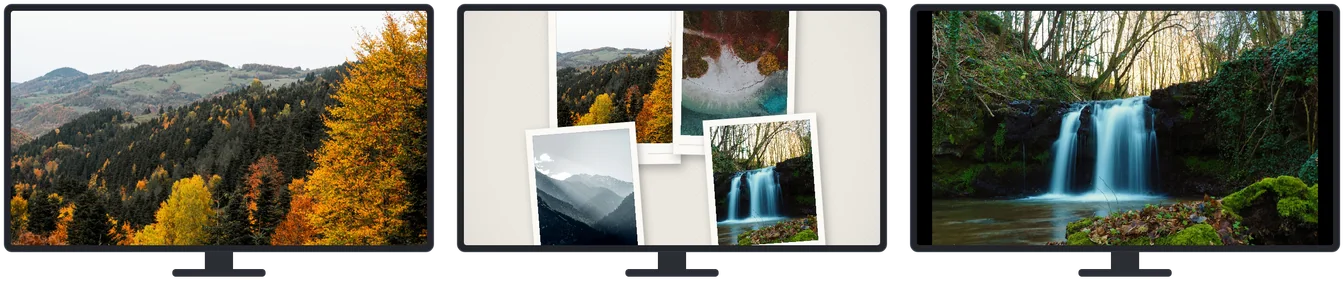
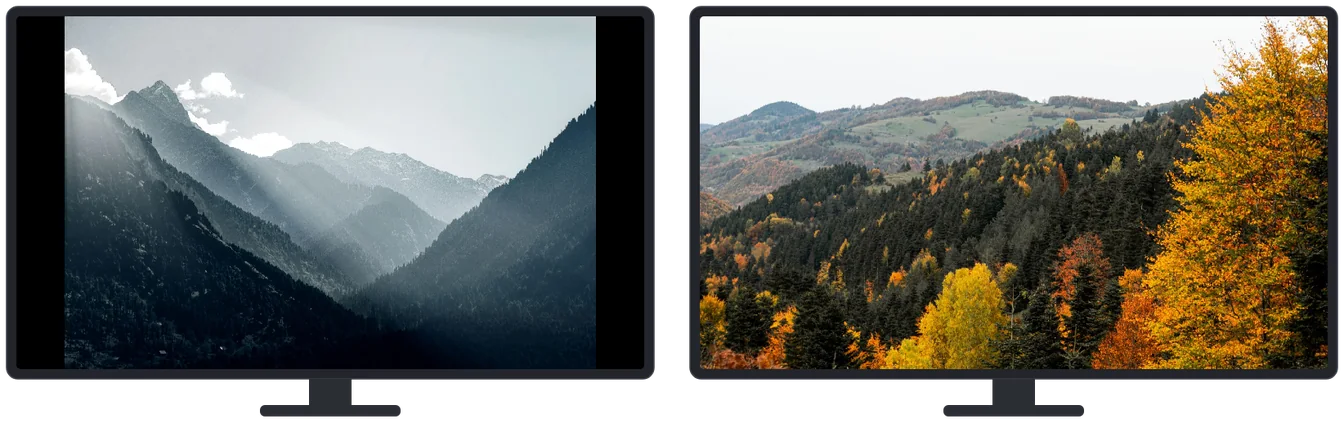
The 29 transitions, and instant swap
These act between one photograph and the next, and live on the Effects tab in Settings. Turn on one of them, turn on all of them, or set a skip chance so that a share of the changes stay plain cuts.






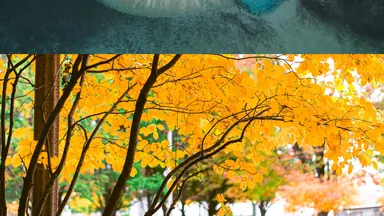


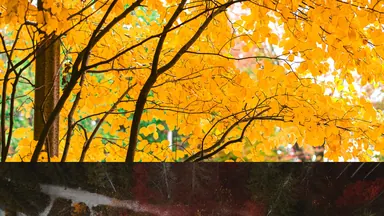
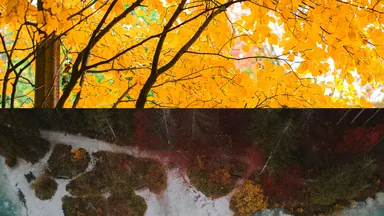








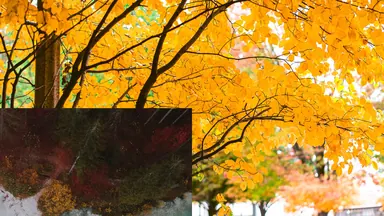












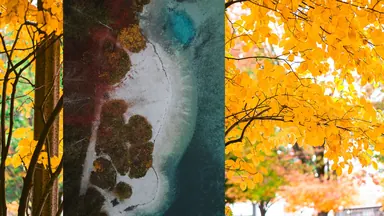












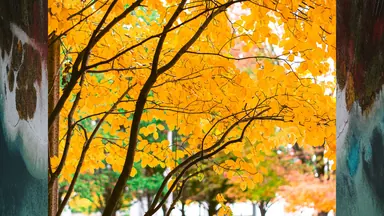



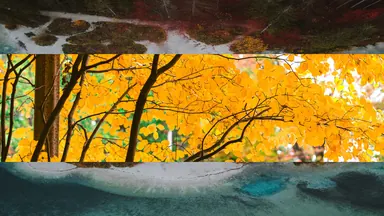


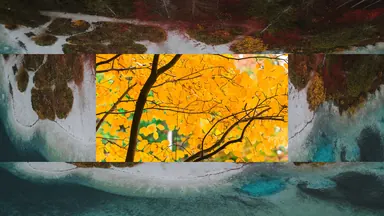



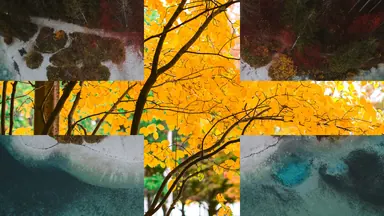
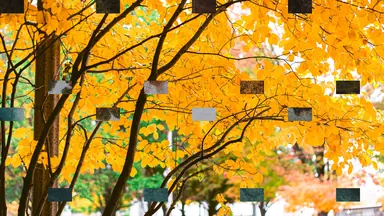
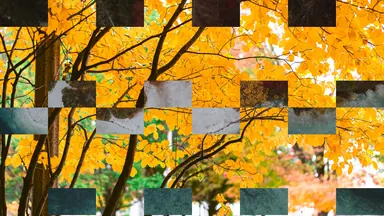

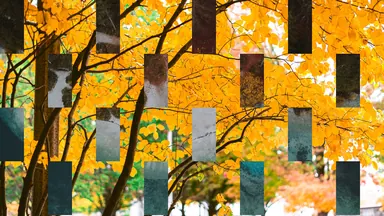
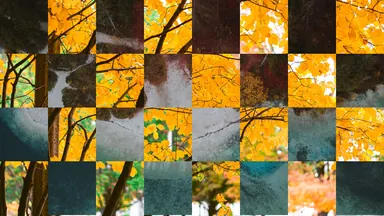

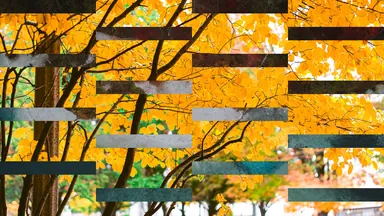
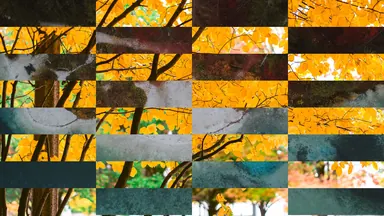
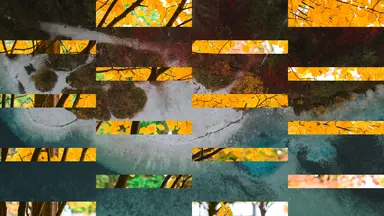
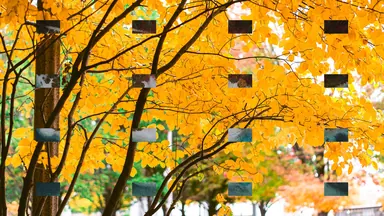


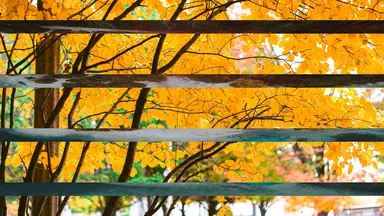



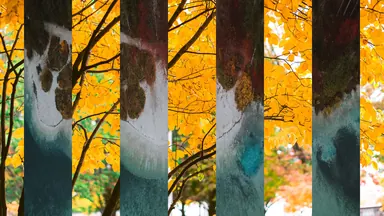
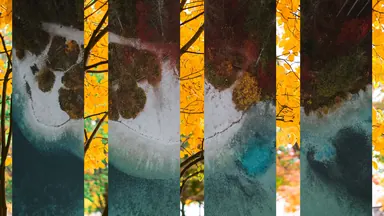














Seeing them together makes choosing easier
Something a column of checkboxes hides becomes obvious once the effects are side by side: these are not 29 equal choices. The directional wipes and the two fades bear endless repetition. The spirals, the chessboard reveals and the outward split are striking the first time and tiring by the fifth. Most rotations settle best on three or four that suit the material, with the rest switched off.
Duration and frame rate change how they feel
Every frame here was rendered at the default duration of one second. Stretch that towards three and the same move becomes something the eye follows rather than something it catches; shorten it and even a spiral reads as a quick flick. Frame rate is a separate setting and decides smoothness, not length.
If one screen stutters and another does not
Transitions are drawn screen by screen and can be affected by your display hardware, which is why the same effect can run smoothly on one monitor and not on the one beside it. If that happens, lower the frame rate or shorten the duration before assuming something is broken.
Ken Burns motion
Soft Effects work while a photograph is on screen rather than between two of them. These eight are slow drifts and zooms, and the three frames are the beginning, middle and end of a single move.
These were rendered at the highest zoom peak the app offers, 1.50. At the default of 1.15 the movement is far gentler — so gentle that three still frames would look like the same photograph three times, which is the only reason the samples use the maximum.
























Collage overlays
The other eight Soft Effects lay several photographs out at once. Every layout is generated fresh, so each style appears twice here with different pictures — a sense of the range rather than one lucky arrangement.
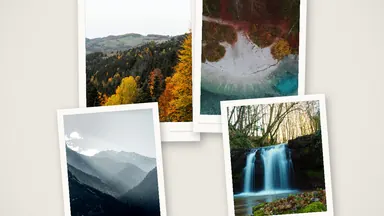
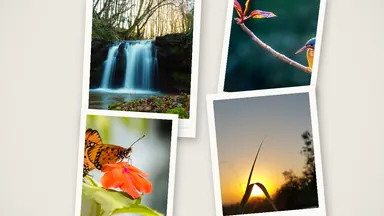
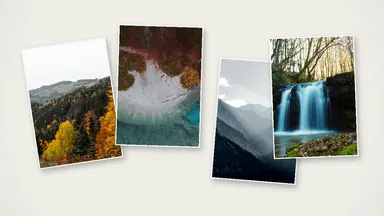
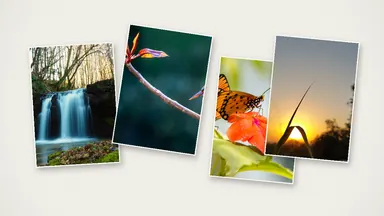
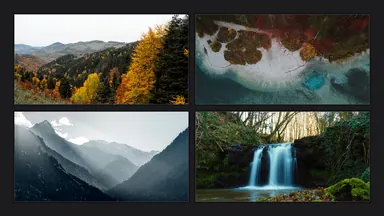
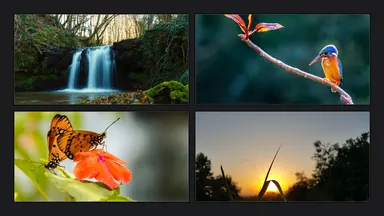
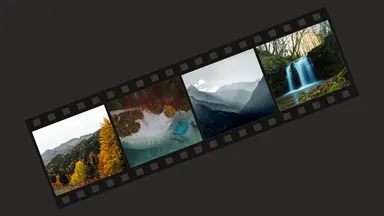
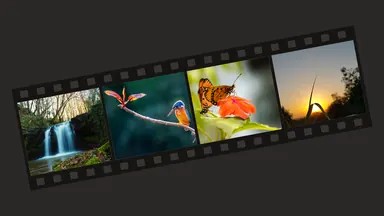


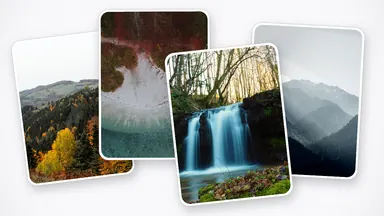
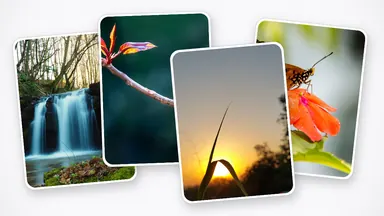

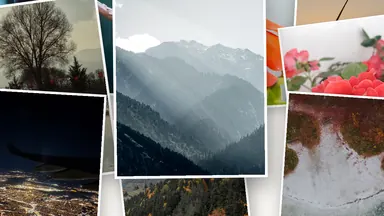


Every sample here is a wide photograph
Both photographs used on this page are 16:9, so they fill the frame and each effect has the whole screen to work with. A portrait photograph, or anything that does not match the shape of your display, is scaled to fit and centred with the surround left black, and the effect then plays out inside that fitted area rather than edge to edge. Worth picturing if your archive is mostly pictures taken on a phone.
What is not on this page
Picture frames and mats are left out. They dress a single still image rather than a change between two, and what you see depends on which frame files are in your own frames folder. Videos are not shown here either.
Each effect is named here the way your own copy of the app names it. The names come from the app's own translations rather than from translating the English ones, so what you read above is what you will look for on the Effects and Soft Effects tabs.
Sample photographs from Pexels.
Download for Windows & Mac